

yoursite.com/docs using AWS Route 53 and CloudFront, you must configure your DNS provider to point to your CloudFront distribution.
Before configuring AWS, set your base path in your dashboard:
- Navigate to the Custom domain setup page in your dashboard.
- Enable the Host at toggle.
- Enter your domain.
- Enter your base path. For example,
/docsor/help. - Click Add domain.
Overview
The following examples use the
/docs base path. If you use a different base path, replace /docs with your base path./.well-known/acme-challenge/*- Required for Let’s Encrypt certificate verification/.well-known/vercel/*- Required for domain verification/docs/*- Required for subpath routing/docs/- Required for subpath routing
/mintlify-assets/_next/static/*Default (*)- Your website’s landing page
AllViewerExceptHostHeader.
The behaviors for your subpath must allow all HTTP methods. CloudFront only allows GET and HEAD requests by default, which blocks the POST requests that Mintlify uses for analytics and other interactive features.
Create CloudFront distribution
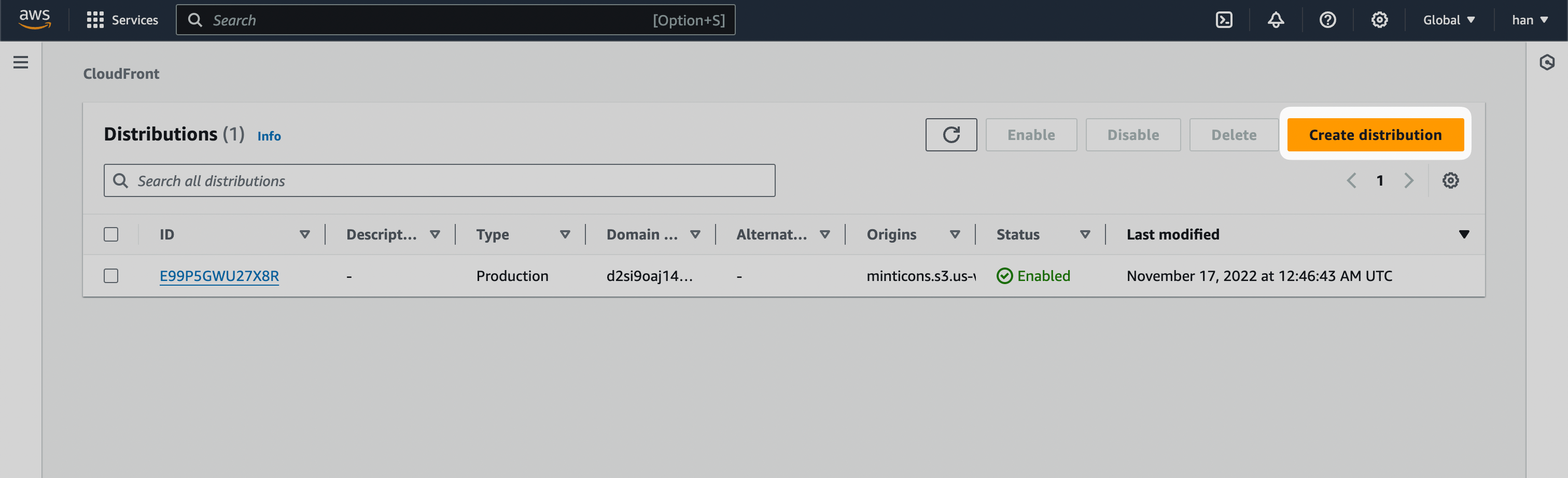
- Navigate to CloudFront inside the AWS console.
- Click Create distribution.
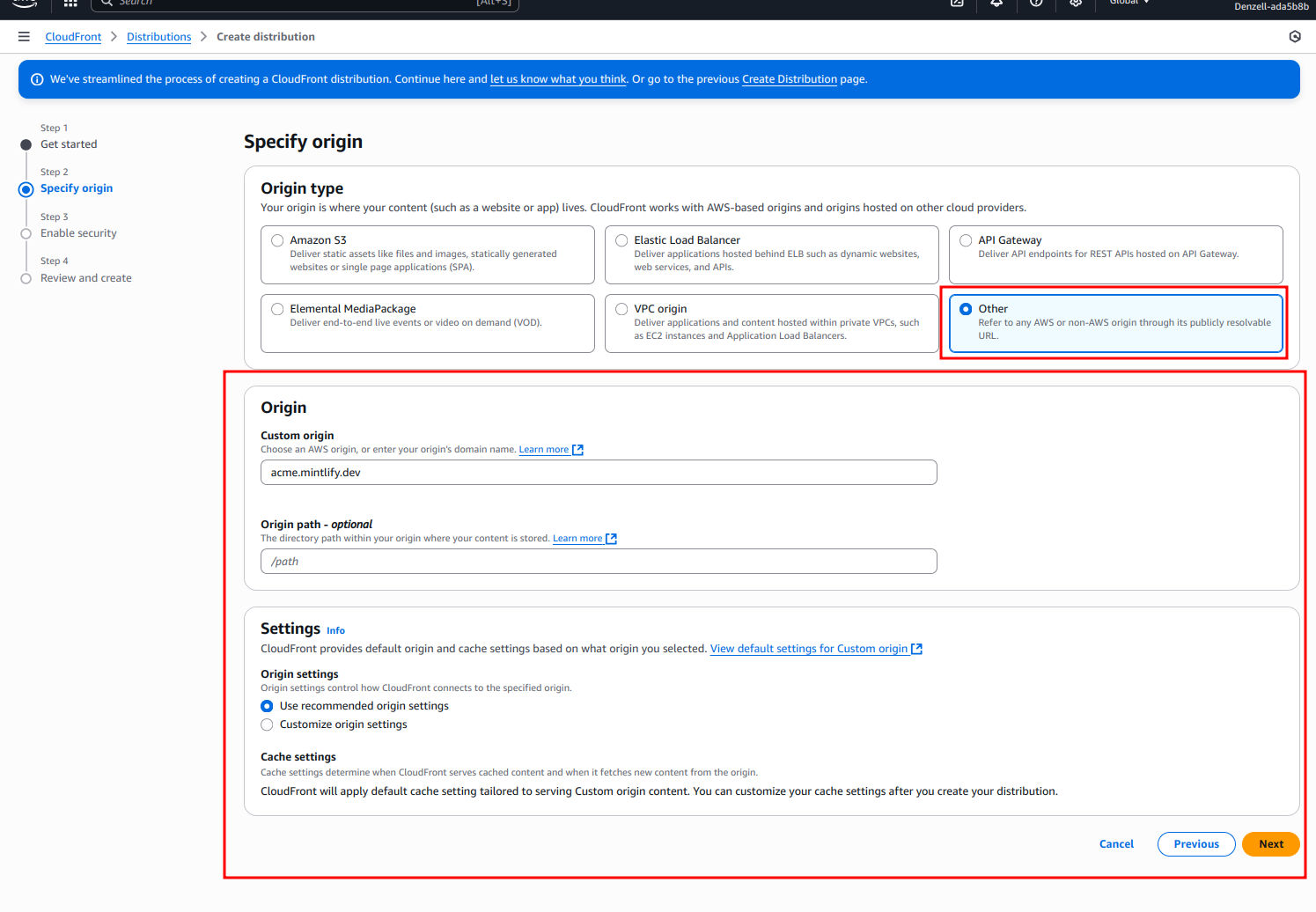
- For the Origin domain, input
[SUBDOMAIN].mintlify.sitewhere[SUBDOMAIN]is your project’s unique subdomain.
- For “Web Application Firewall (WAF),” enable security protections.
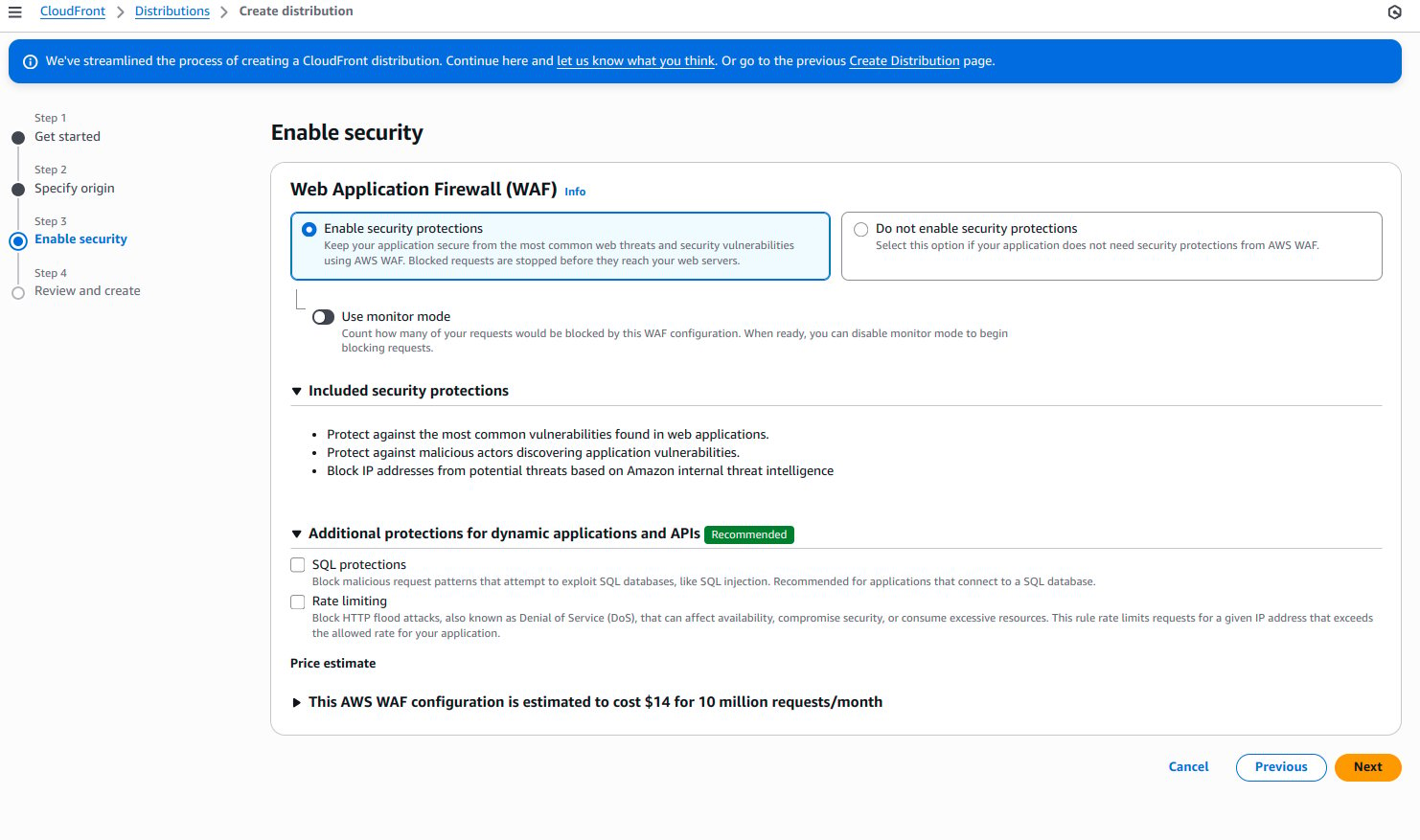
WAF rules can block the
POST requests that Mintlify uses for analytics and other interactive features. If analytics stop appearing in your dashboard after enabling WAF, check your WAF logs for blocked requests to paths under /docs/_mintlify/.- The remaining settings should be default.
- Click Create distribution.
Add default origin
- After creating the distribution, navigate to the “Origins” tab.
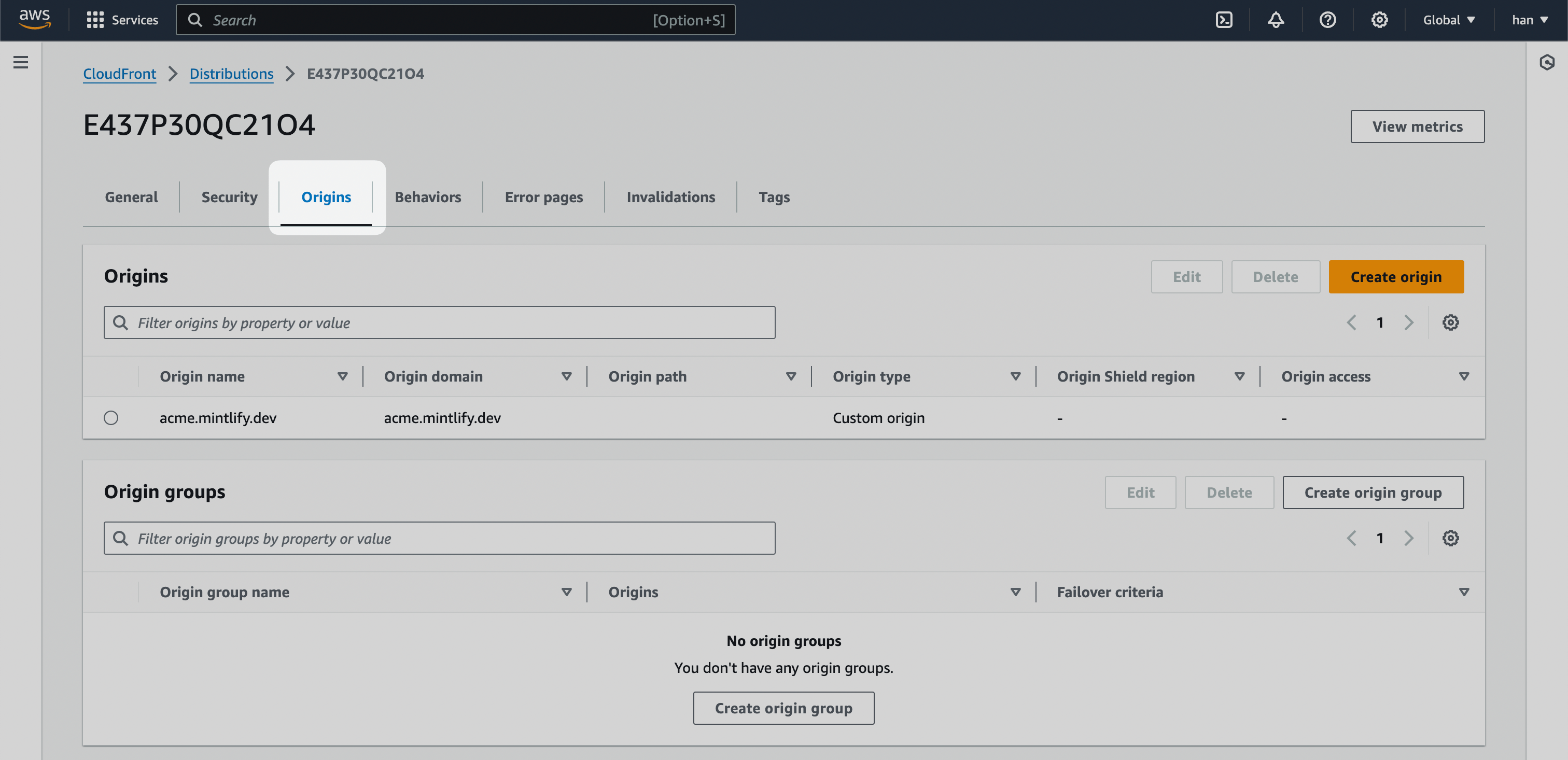
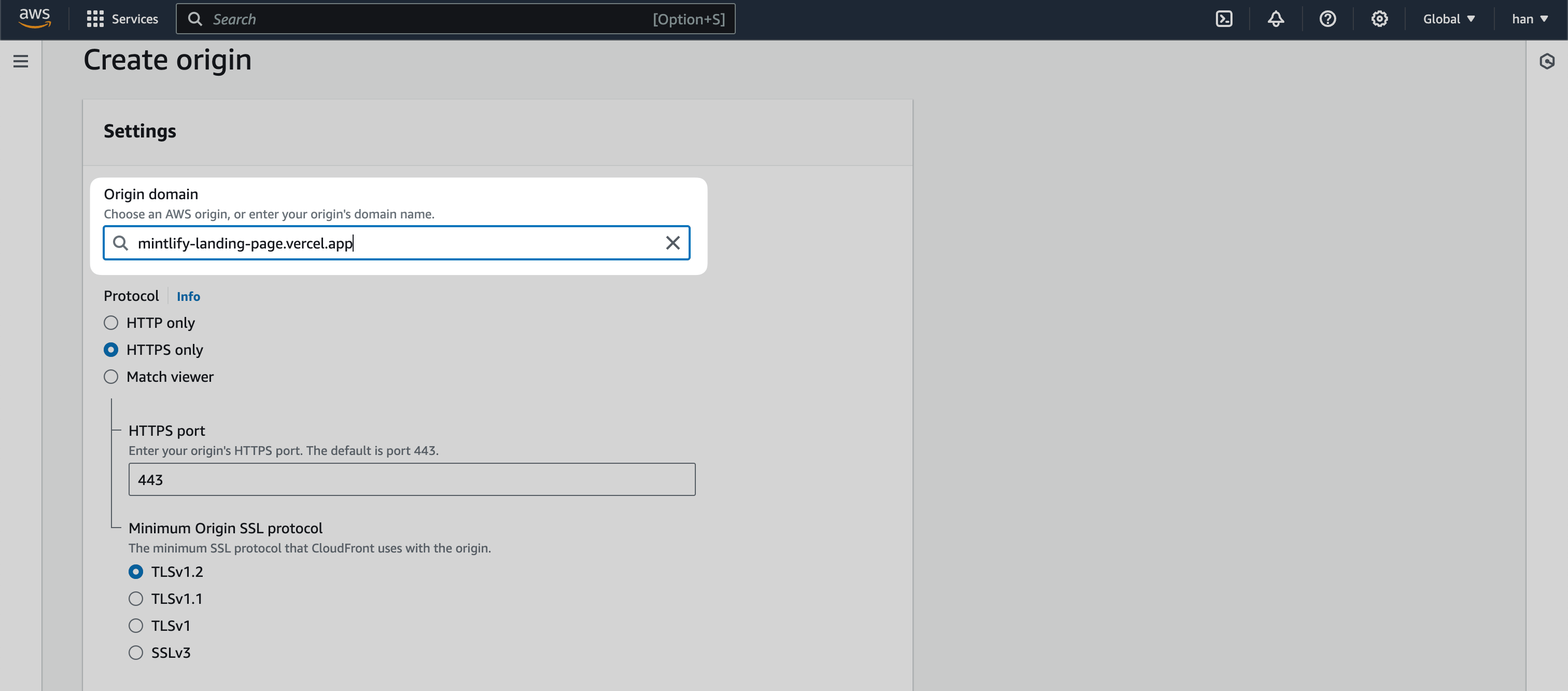
- Find your staging URL that mirrors the main domain. This varies depending on your landing page host. For example, the Mintlify staging URL is mintlify-landing-page.vercel.app.
If Webflow hosts your landing page, use Webflow’s staging URL. It would look like
.webflow.io.If you use Vercel, use the .vercel.app domain available for every project.- Create a new Origin and add your staging URL as the “Origin domain.”
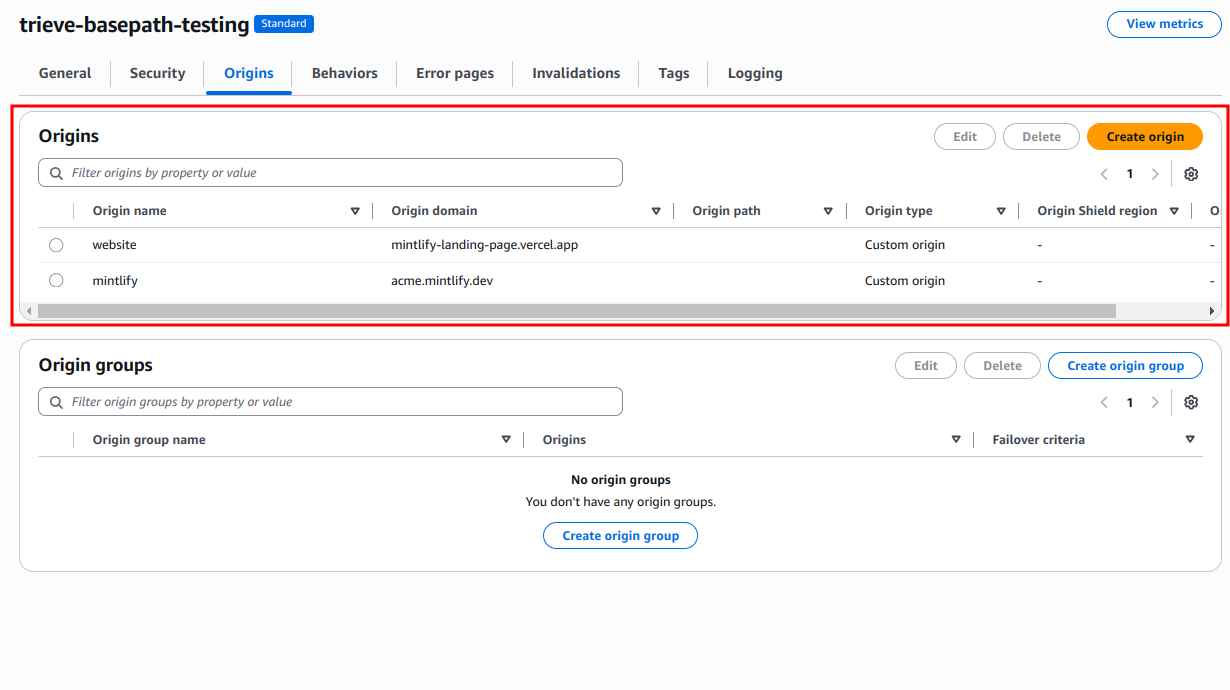
[SUBDOMAIN].mintlify.site and another with your staging URL.
Set behaviors
Behaviors in CloudFront enable control over the subpath logic. At a high level, you create the following logic:- If a user lands on your custom subpath, go to
[SUBDOMAIN].mintlify.site. - If a user lands on any other page, go to the current landing page.
- Navigate to the “Behaviors” tab of your CloudFront distribution.
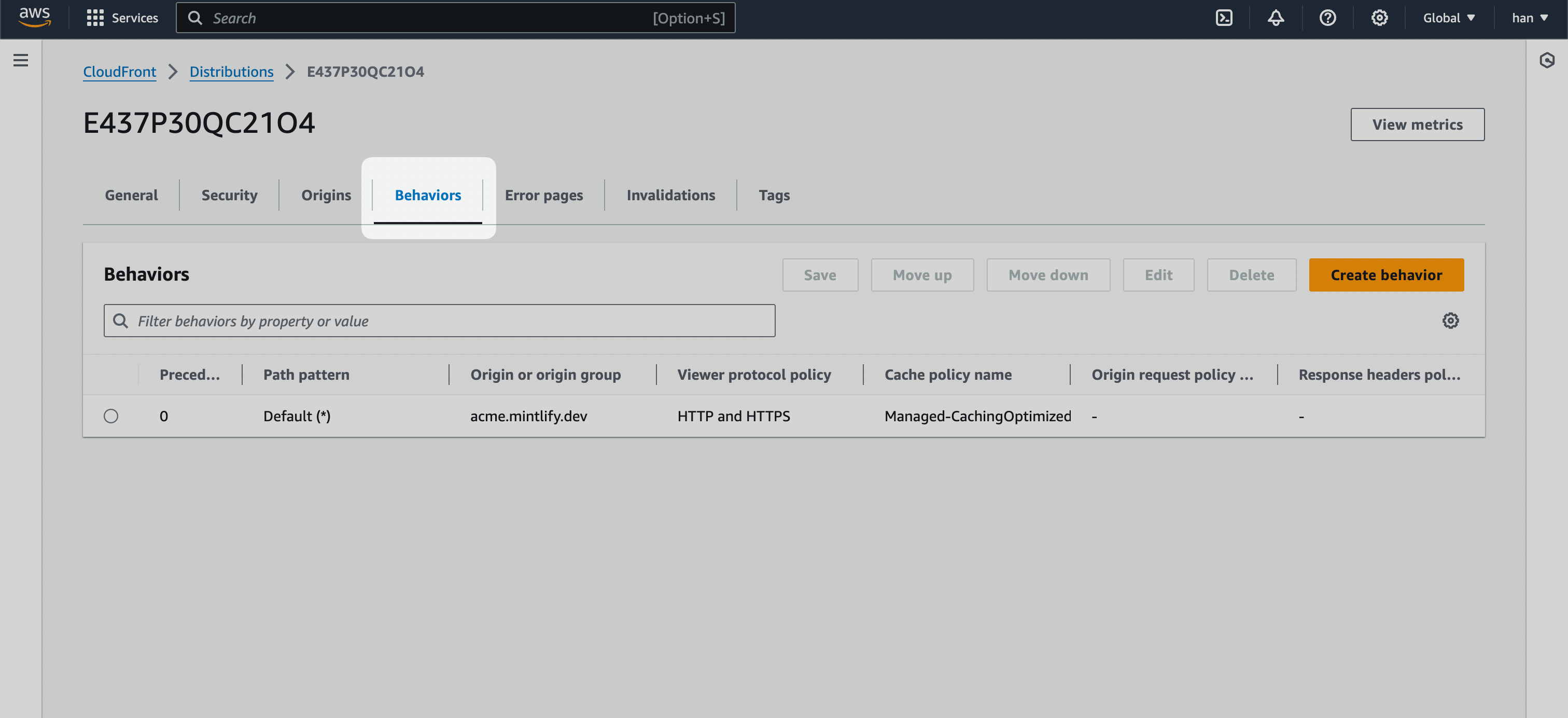
- Click the Create behavior button and create the following behaviors.
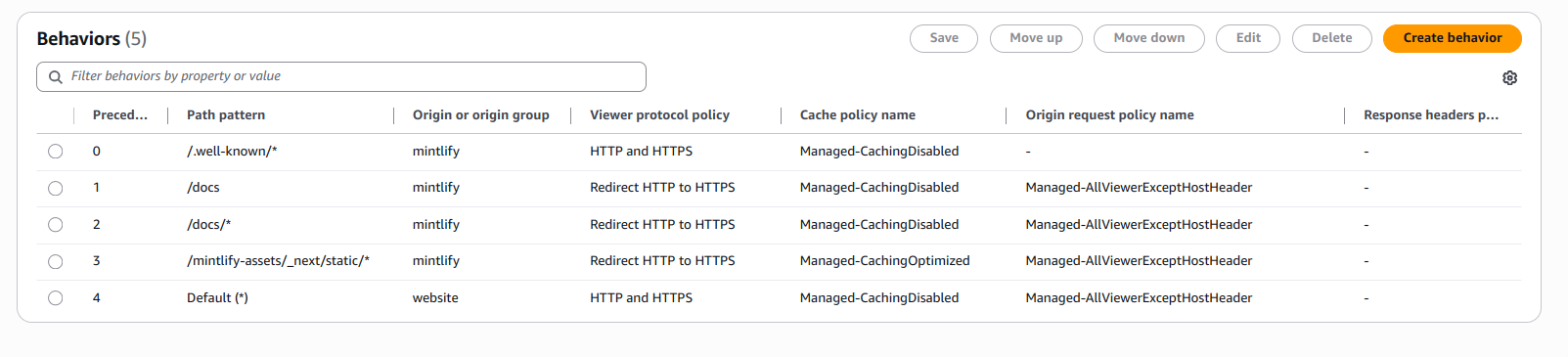
/.well-known/*
Create behaviors for Vercel domain verification paths with a Path pattern of /.well-known/* and set Origin and origin groups to your docs URL.
For “Cache policy,” select CachingDisabled to ensure these verification requests pass through without caching.
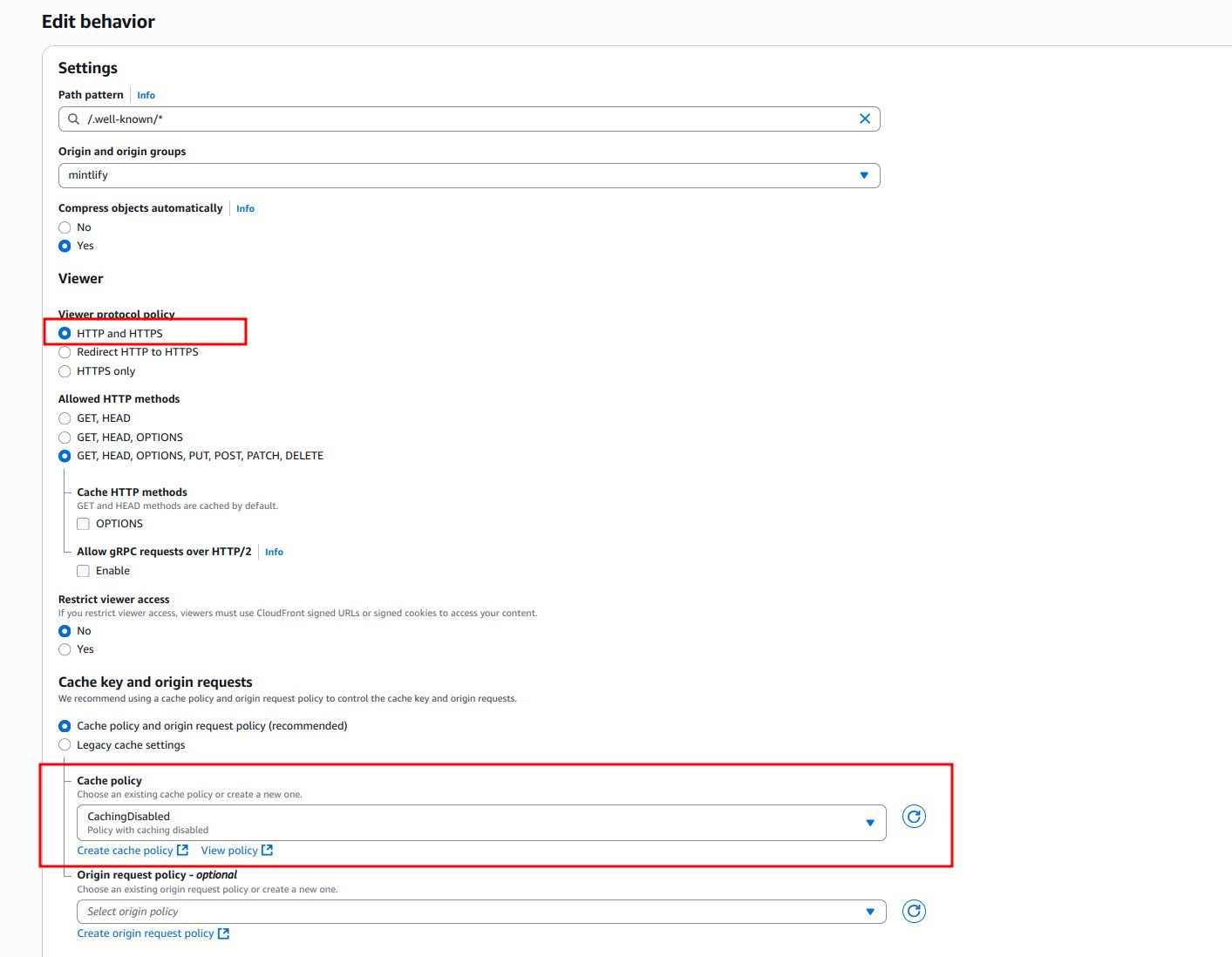
If
.well-known/* is too generic, you can narrow it down to 2 behaviors at a minimum for Vercel:/.well-known/vercel/*- Required for Vercel domain verification/.well-known/acme-challenge/*- Required for Let’s Encrypt certificate verification
Your subpath
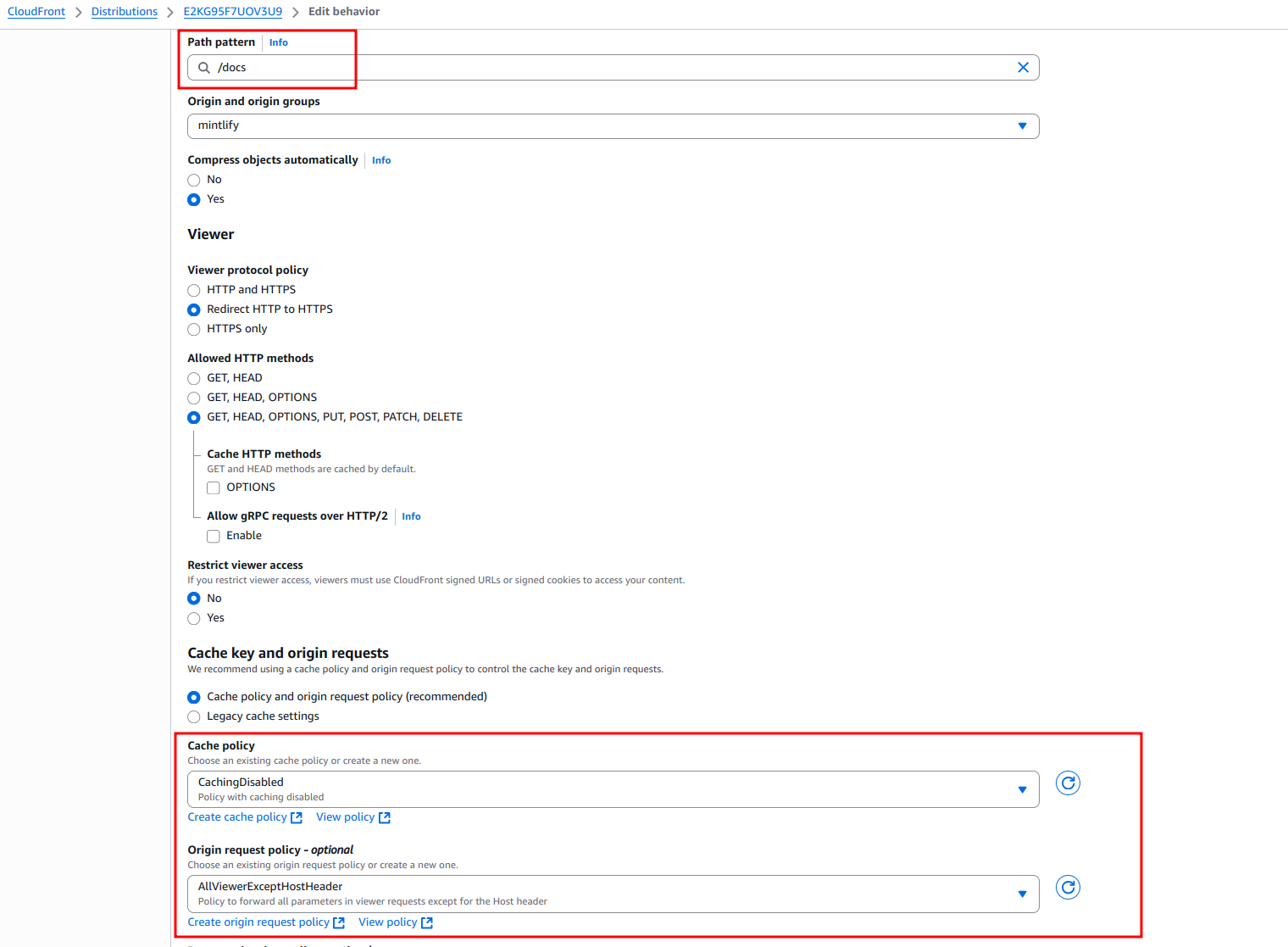
Create a behavior with a Path pattern of your chosen subpath, for example/docs, with Origin and origin groups pointing to the .mintlify.site URL (for example, acme.mintlify.site).
- Set “Cache policy” to CachingDisabled.
- Set “Origin request policy” to AllViewerExceptHostHeader.
- Set “Viewer protocol policy” to Redirect HTTP to HTTPS.
- Set “Allowed HTTP methods” to GET, HEAD, OPTIONS, PUT, POST, PATCH, DELETE.
Your subpath with wildcard
Create a behavior with a Path pattern of your chosen subpath followed by/*, for example /docs/*, and Origin and origin groups pointing to the same .mintlify.site URL.
These settings should exactly match your base subpath behavior, with the exception of the Path pattern.
- Set “Cache policy” to CachingDisabled.
- Set “Origin request policy” to AllViewerExceptHostHeader.
- Set “Viewer protocol policy” to Redirect HTTP to HTTPS.
- Set “Allowed HTTP methods” to GET, HEAD, OPTIONS, PUT, POST, PATCH, DELETE.
/mintlify-assets/_next/static/*
- Set “Cache policy” to CachingOptimized.
- Set “Origin request policy” to AllViewerExceptHostHeader.
- Set “Viewer protocol policy” to Redirect HTTP to HTTPS.
Default (*)
Lastly, edit the Default (*) behavior.
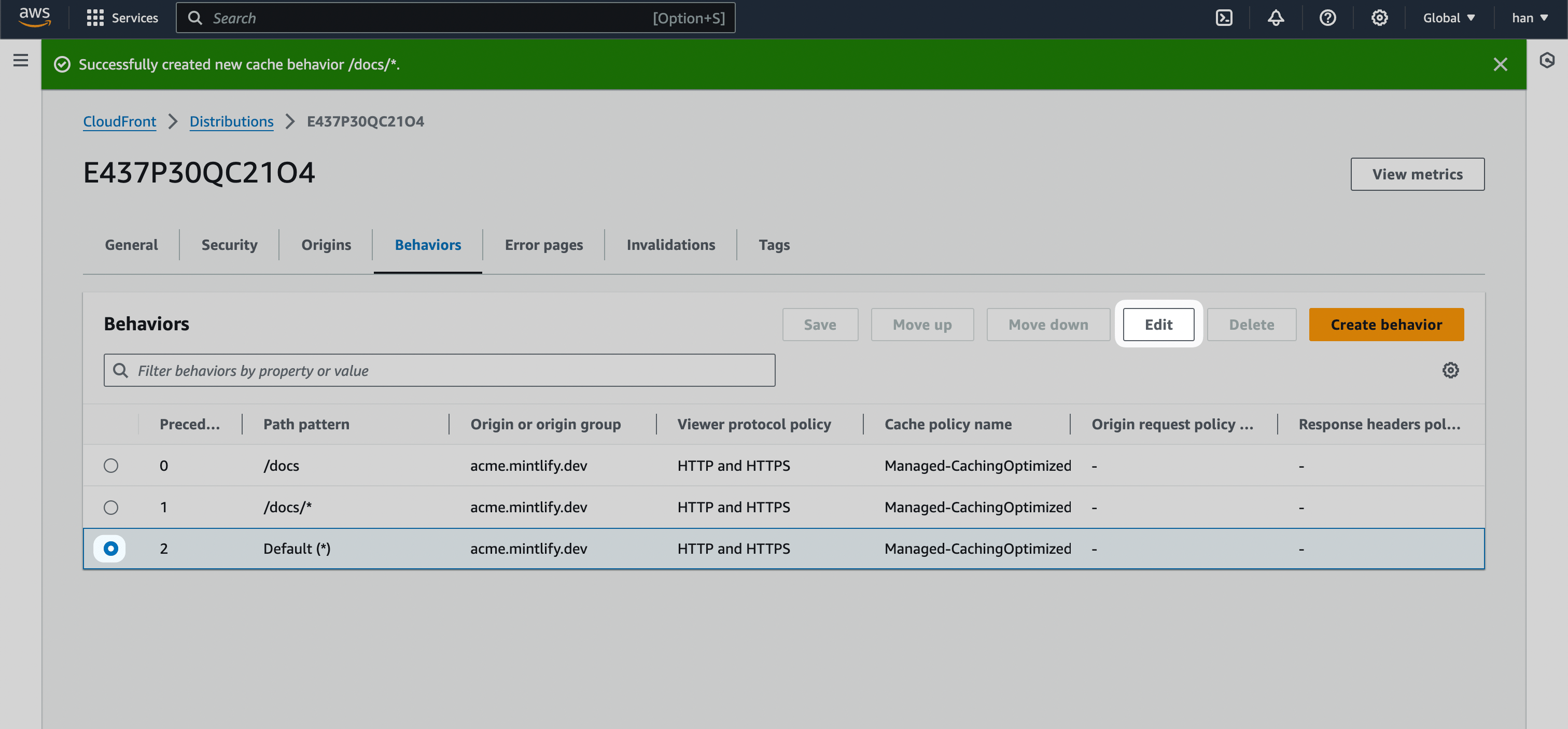
- Change the default behavior’s Origin and origin groups to the staging URL (for example,
mintlify-landing-page.vercel.app).
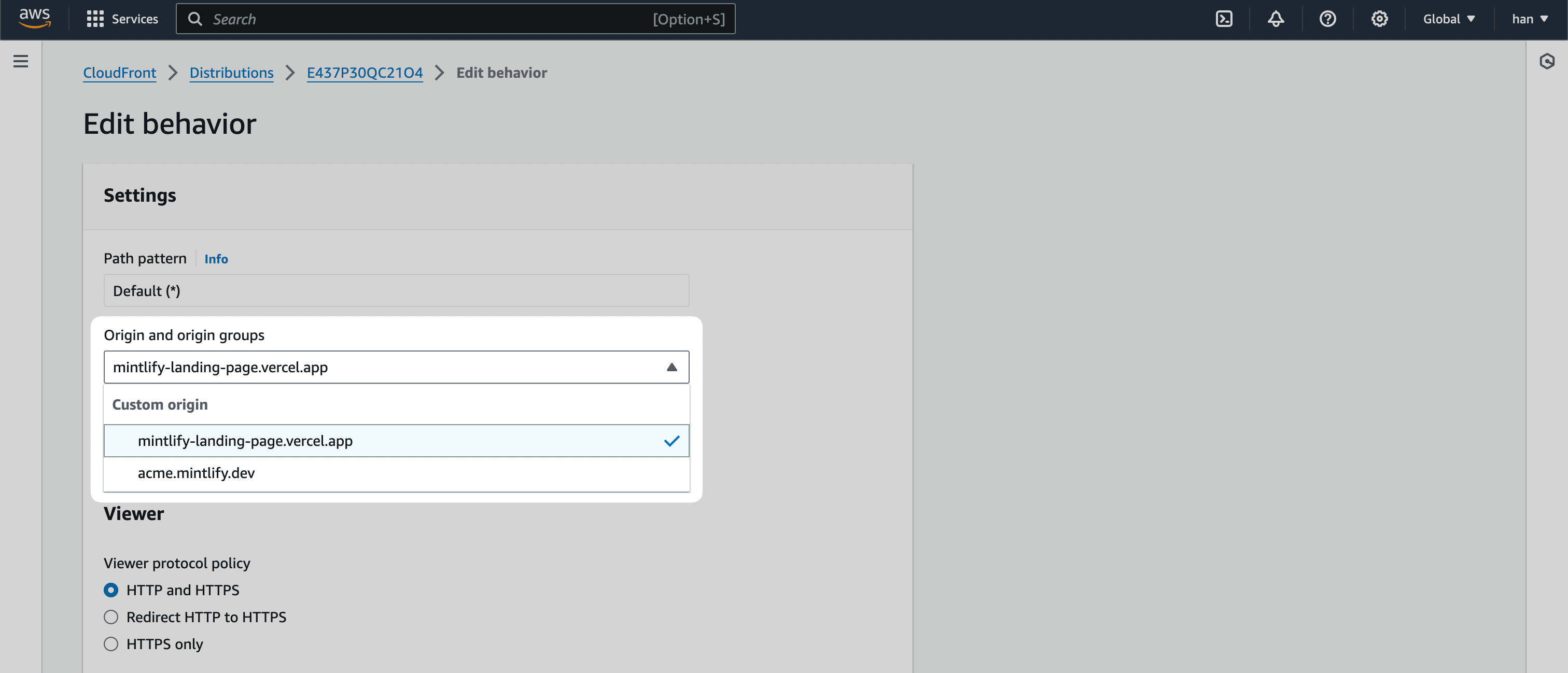
- Click Save changes.
Check that you set up behaviors correctly
If you follow the preceding steps, your behaviors should look like this:Preview distribution
You can now test whether you set up your distribution properly by going to the “General” tab and visiting the Distribution domain name URL.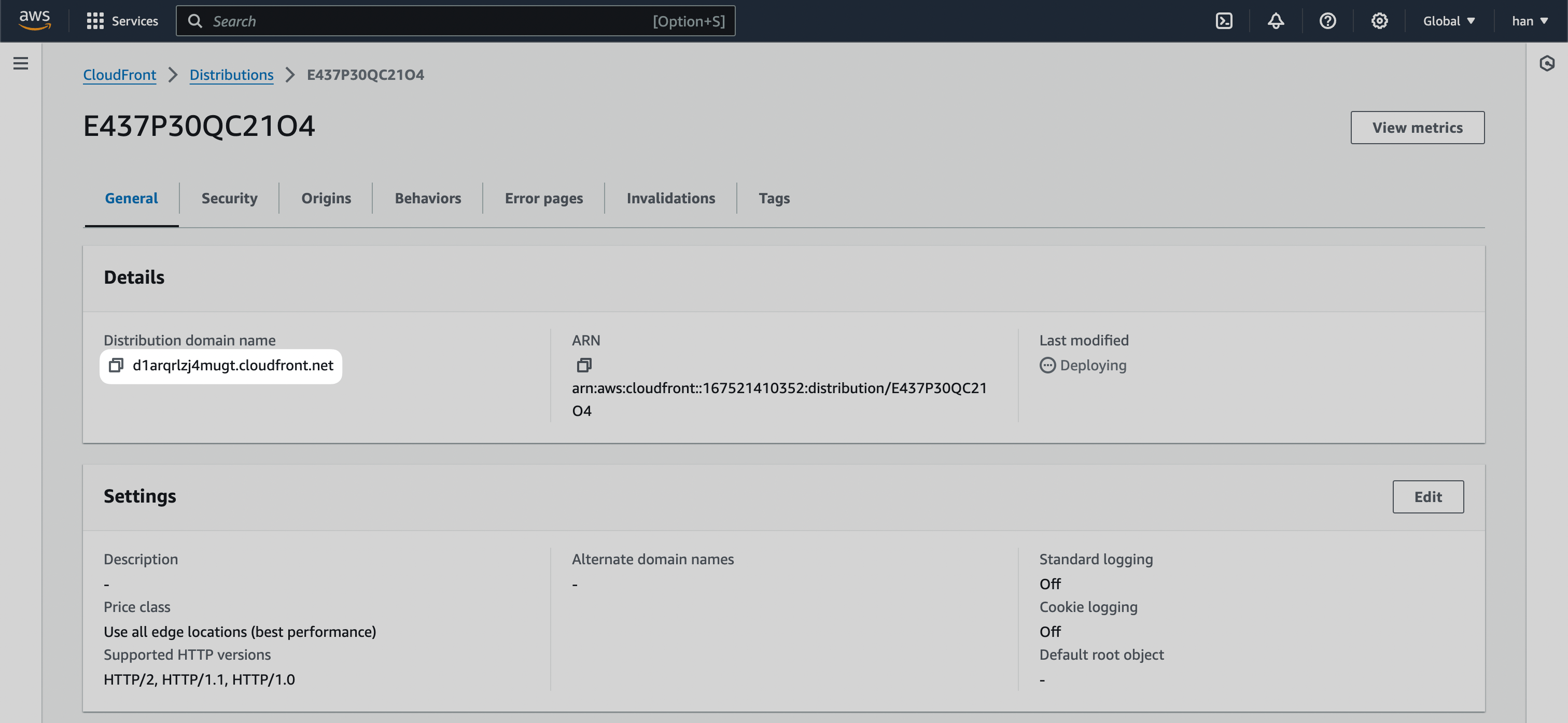
/docs, to the URL, you should see it going to your Mintlify documentation instance.
Connect with Route 53
Now, bring the capabilities of the CloudFront distribution into your primary domain.For this section, you can also refer to AWS’s official guide on Configuring
Amazon Route 53 to route traffic to a CloudFront
distribution
- Navigate to Route53 inside the AWS console.
- Navigate to the “Hosted zone” for your primary domain.
- Click Create record.
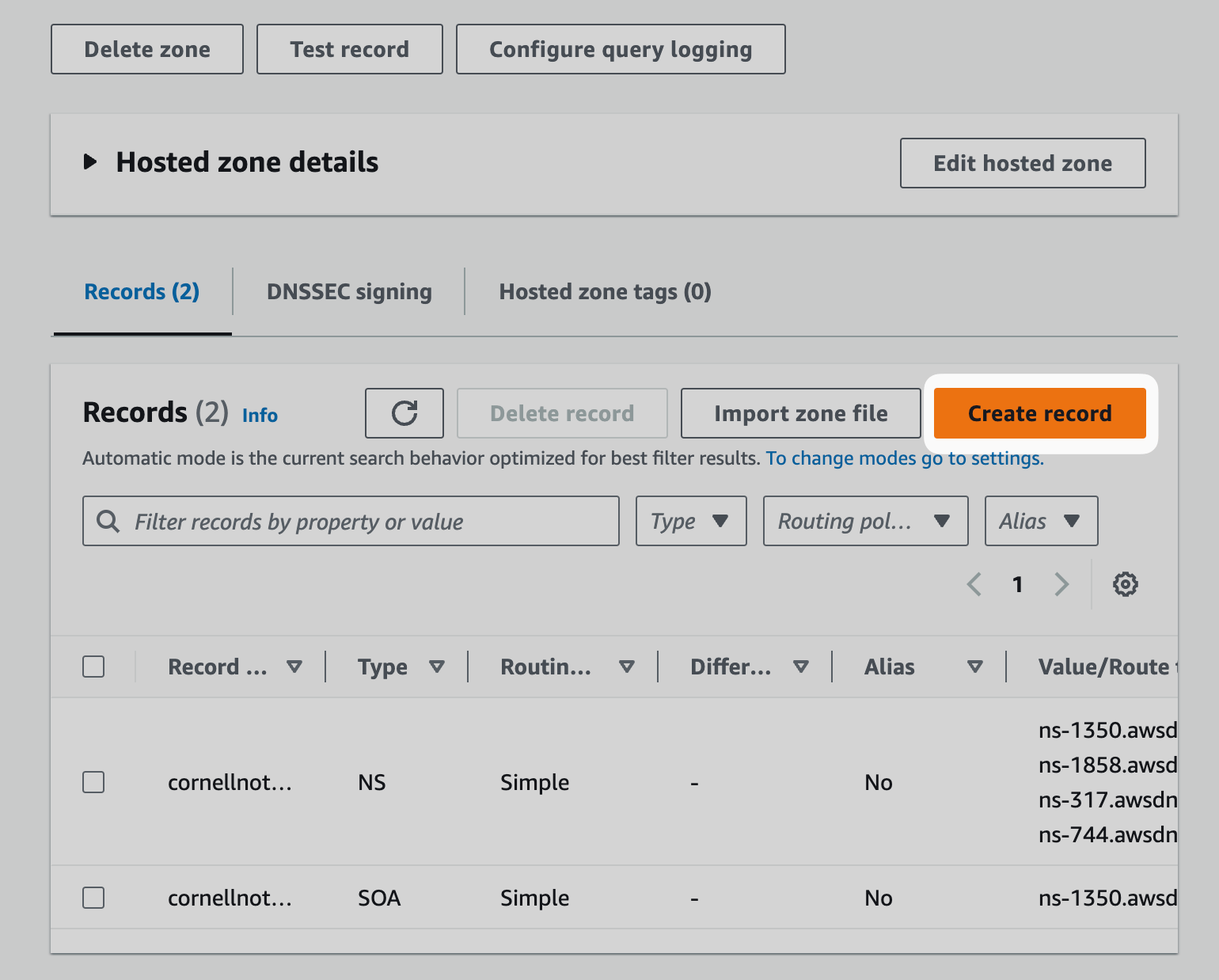
- Toggle
Aliasand then Route traffic to theAlias to CloudFront distributionoption.
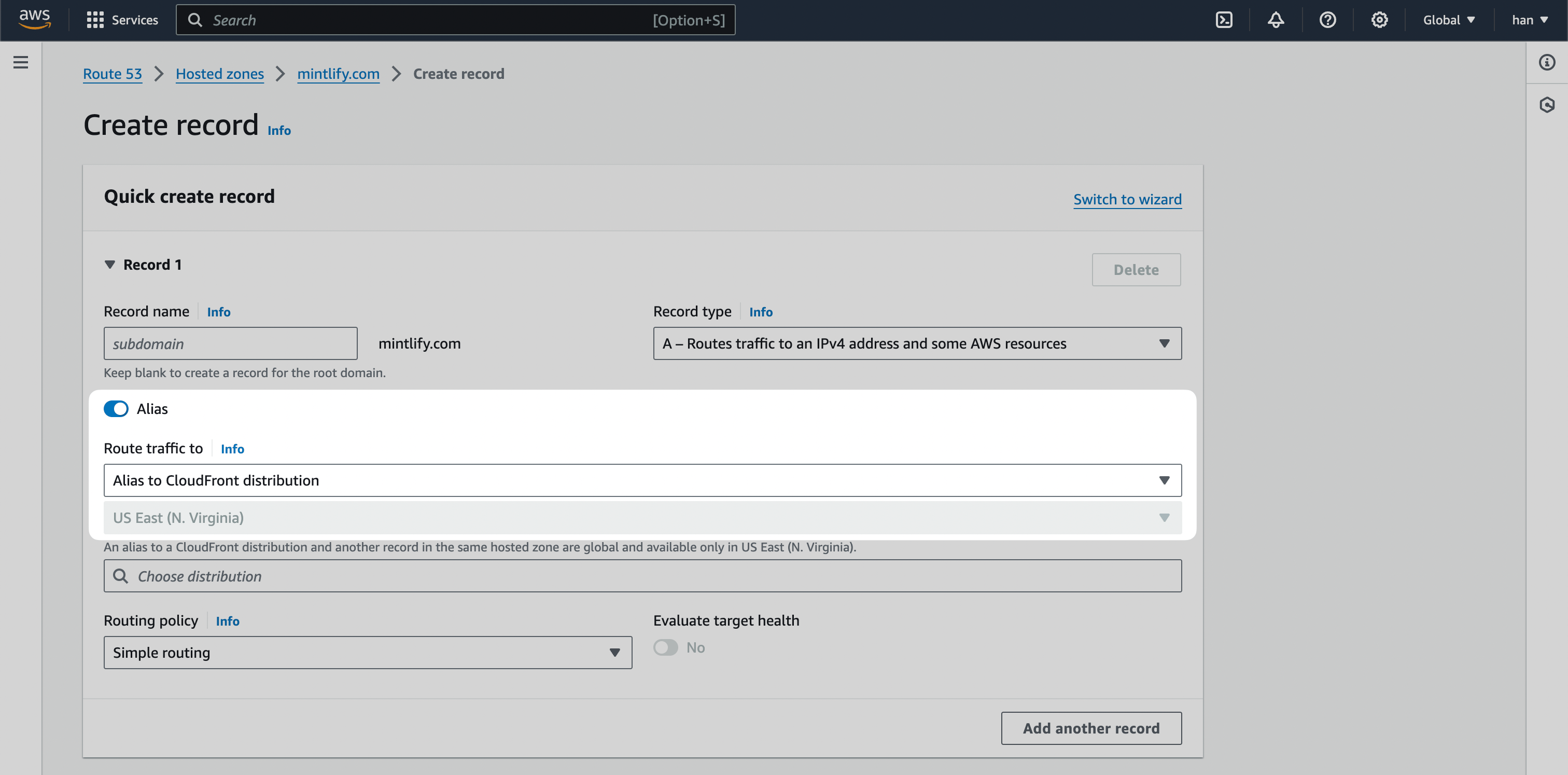
- Click Create records.
You may need to remove the existing A record if one currently exists.
After you deploy your changes, your documentation is usually available at your subpath within a few minutes. If your setup includes DNS changes, propagation can take 1-4 hours, and in rare cases up to 48 hours. If your documentation is not immediately available, wait before troubleshooting.